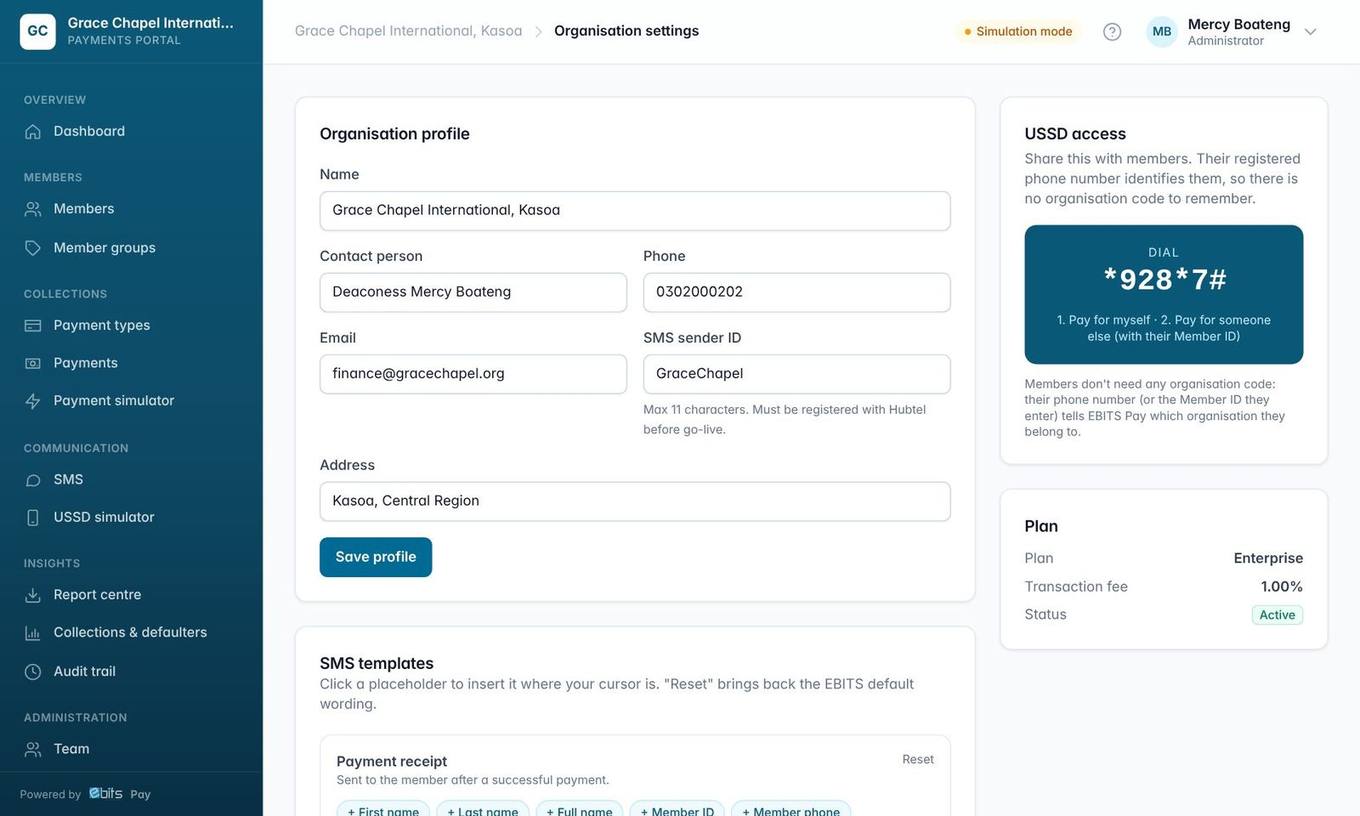
Hubtel account & settings
Your members' money goes straight into your own Hubtel merchant account. EBITS never holds it.
1 min read Updated 19 Oct 2026
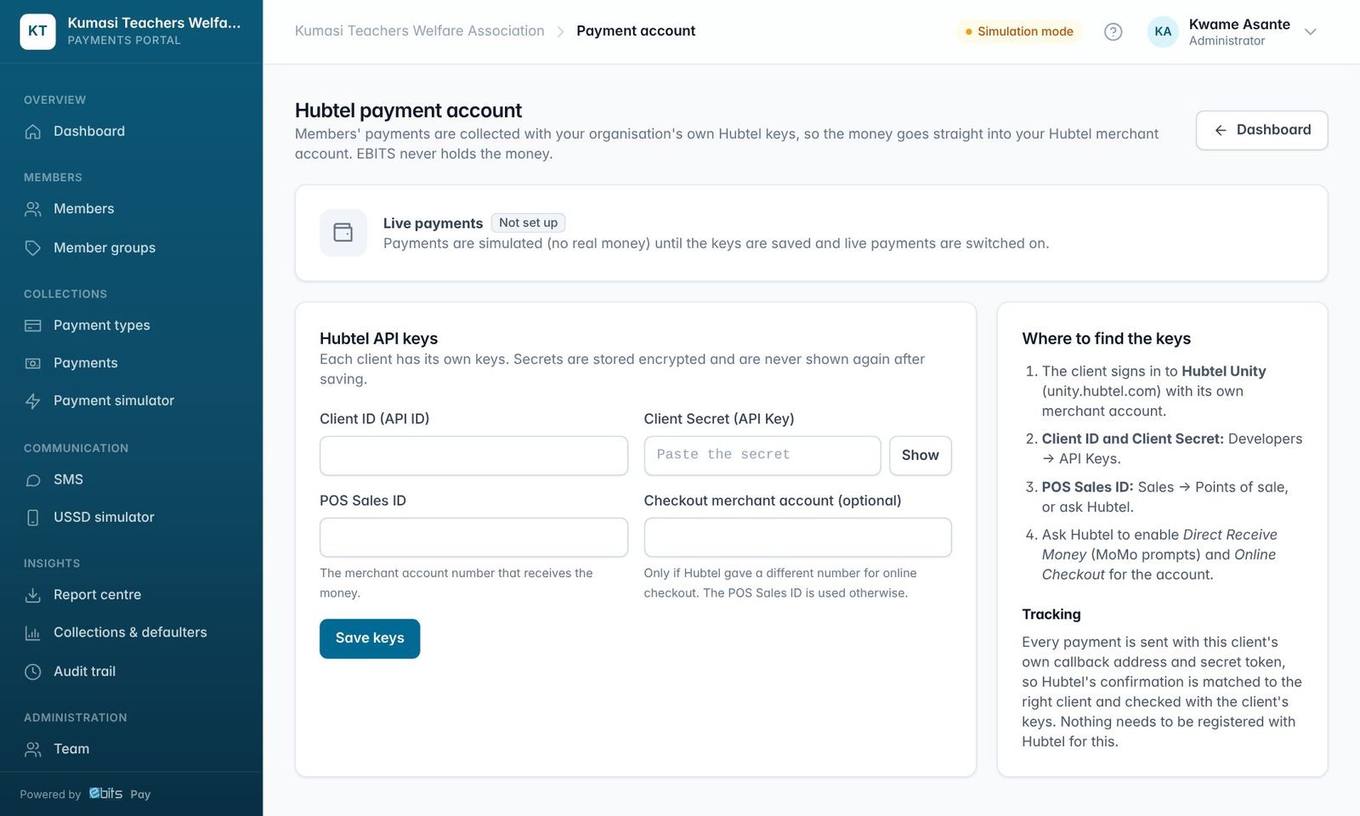
- Get your Client ID, Client Secret and POS Sales ID from Hubtel Unity (Developers → API Keys; Sales → Points of sale).
- Open Payment account, paste the keys and press Save keys. The secret is stored encrypted and never shown again.
- Press Test keys. Hubtel must accept them.
- Press Switch live payments on. From now on members are charged real money into your account.
Important Hubtel must enable Direct Receive Money and Online Checkout on your account and whitelist the EBITS Pay server. EBITS will guide you through this.
Organisation settings