
Importing members from Excel
Bring the member list you already have. No template is needed: EBITS Pay reads your headings and suggests where each column goes.
2 min read Updated 19 Oct 2026
- Go to Members → Import from Excel (EBITS staff: Import members, then choose the client).
- Choose your .xlsx or .csv file. Title rows and blank lines are skipped automatically.
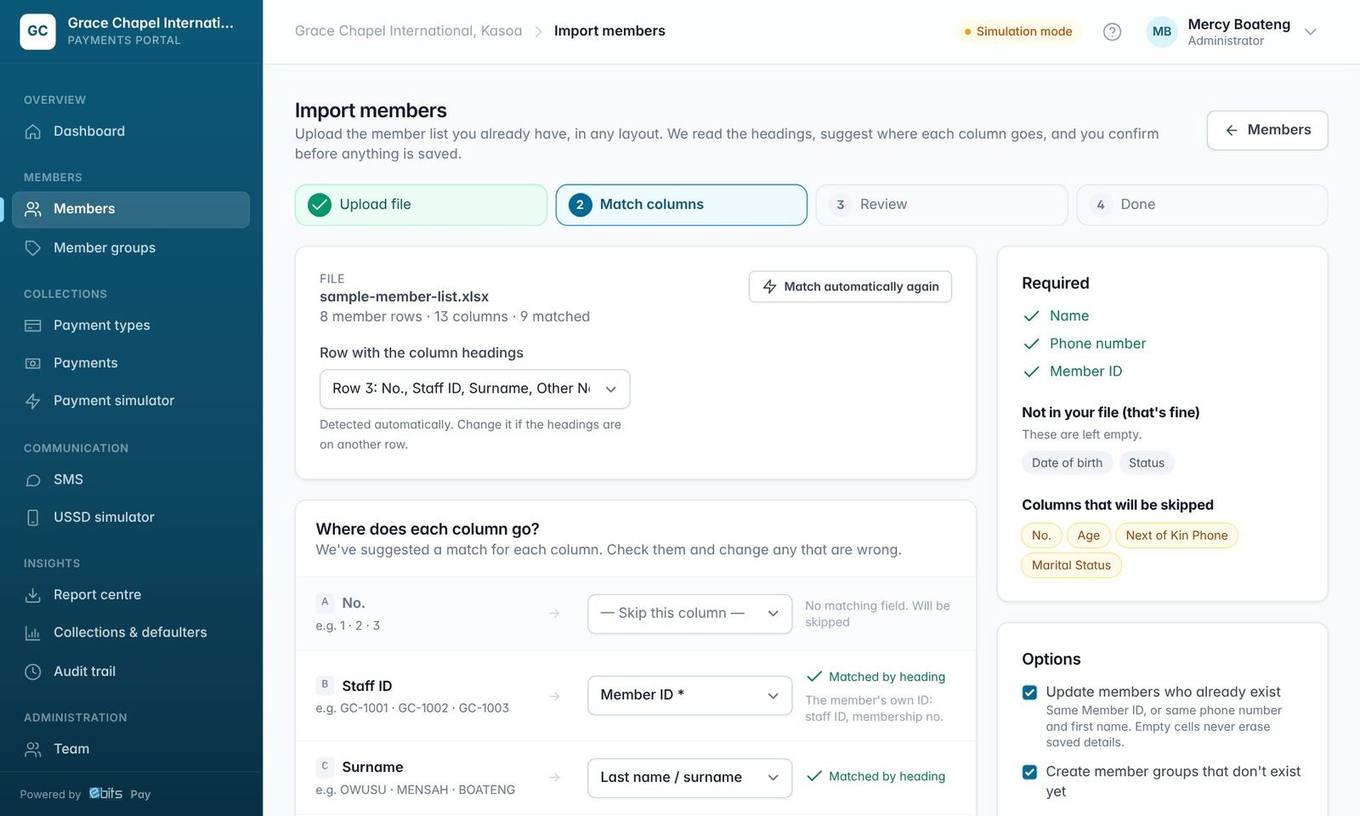
- Match columns. Each column shows examples and a suggestion such as Member's Name → Full name or Sex → Gender. Change any that are wrong. Columns EBITS Pay doesn't keep (e.g. Age) are skipped, or you can keep them as extra info. Your file must have a Member ID column (e.g. Staff ID, Membership No.).
- Review. Every row is marked New Update or Skip with the reason.
- Press Import. Download the skipped rows, fix them and import the file again: existing members are updated, never duplicated.
Member IDs Rows without a Member ID or a valid phone number are skipped with the reason shown, never given an invented ID.
Tip Phone numbers that lost their leading 0 in Excel (244123456), +233 numbers and ALL CAPS names are fixed for you. Old Excel 97-2003 (.xls) files must first be saved as .xlsx or CSV.