
Recording & tracking payments
Every payment, whether USSD, mobile money prompt, online, cash or bank, appears on the Payments screen with its status.
1 min read Updated 19 Oct 2026
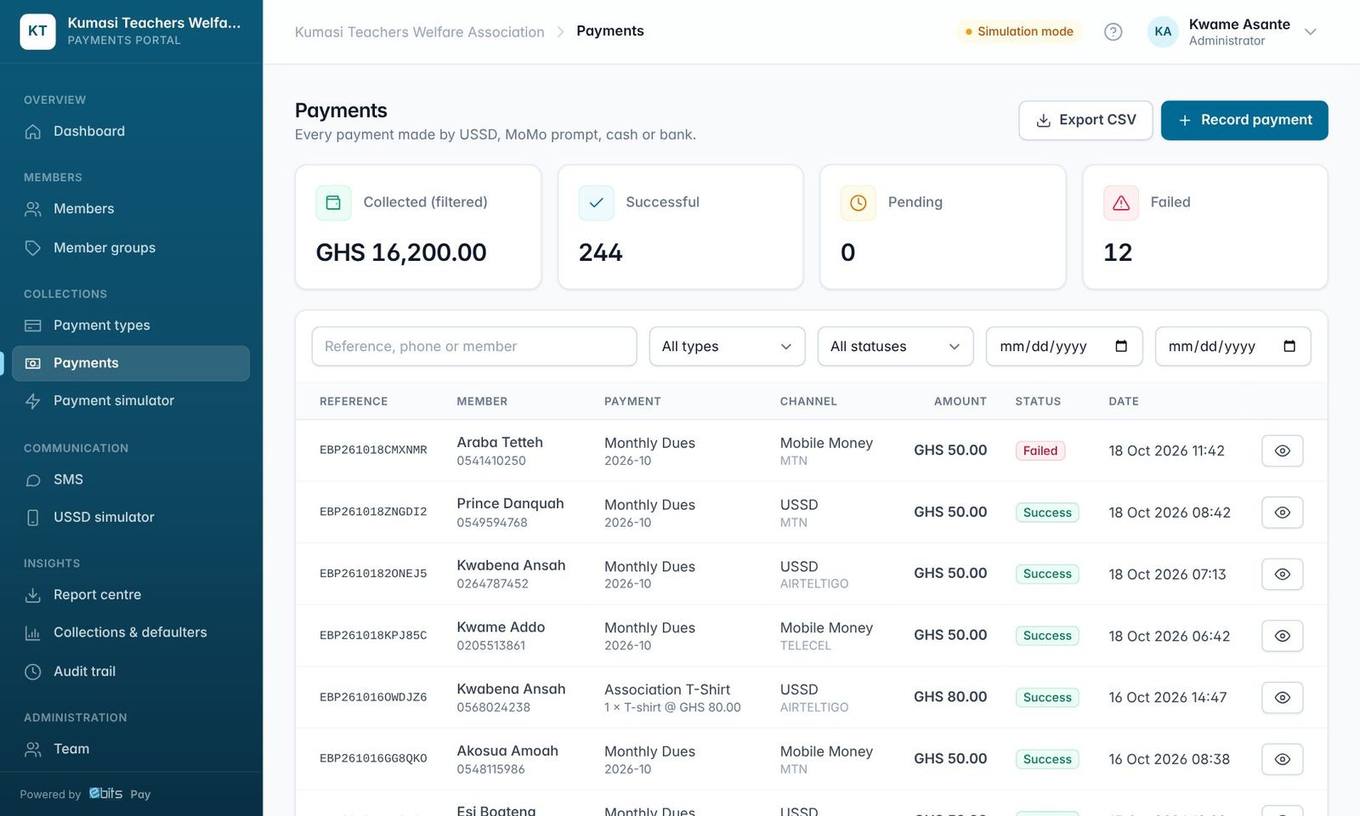
Record a payment
- Click Record payment (or use the button on a member's profile).
- Choose the member, payment type, amount (or quantity) and channel.
- Mobile Money: a prompt is sent to the payer's phone to approve. Cash/Bank: recorded as successful immediately.
- The member receives an SMS receipt with the reference.
| Status | Meaning |
|---|---|
| Pending | Waiting for the member to approve on their phone. Use Recheck to ask Hubtel, or Cancel. |
| Successful | Money received. A receipt SMS has been sent. |
| Failed / Cancelled | Declined, timed out or cancelled. The member is told by SMS. |
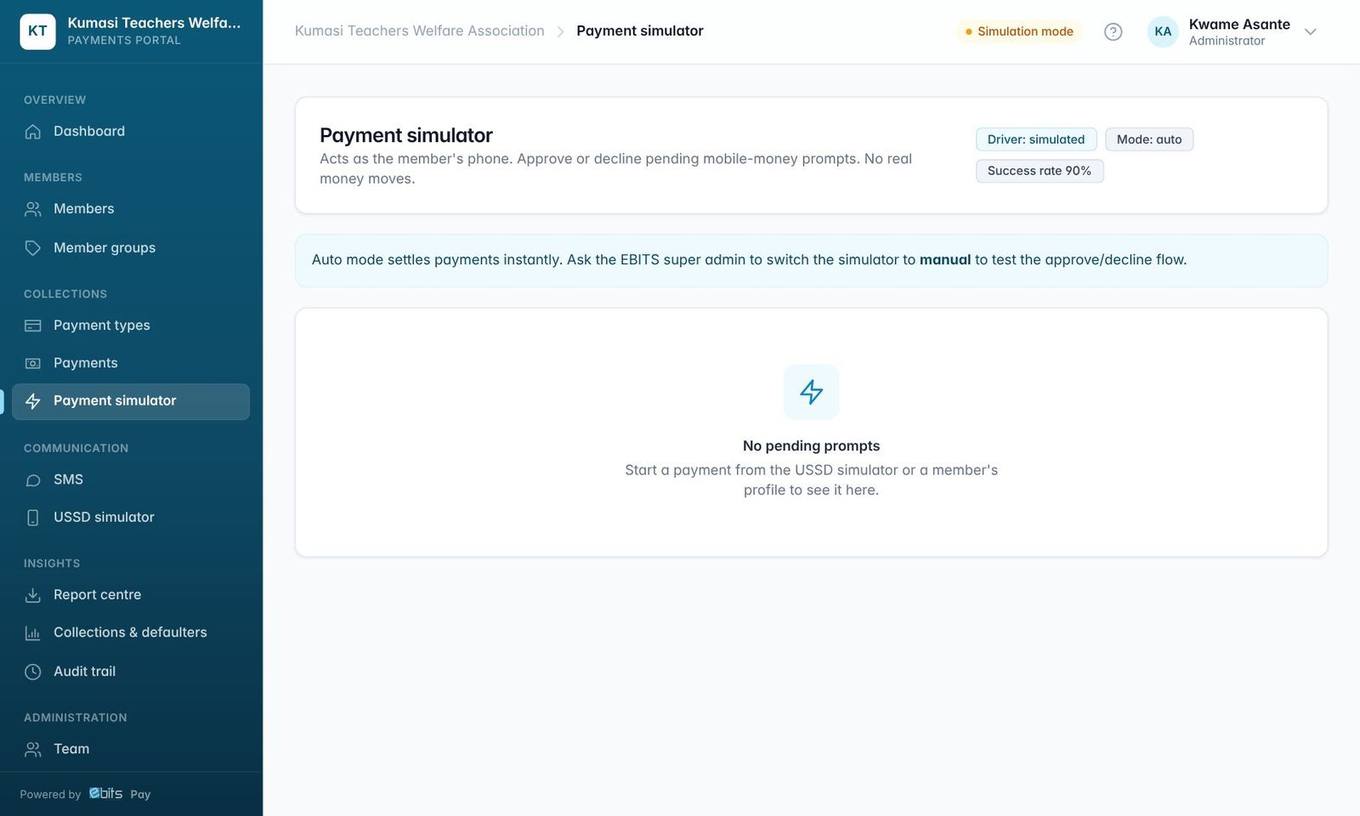
Good to know Until your Hubtel account is switched on, EBITS Pay runs in simulation mode (badge at the top of the screen): no real money moves. Use the Payment simulator to approve or decline test payments as the member's phone would.