Your brand: logo, colours & interface style
Make the portal look like your own system. Your logo, name and colours load for your whole team as soon as they sign in, and appear on printed reports and members' receipts.
3 min read Updated 19 Oct 2026
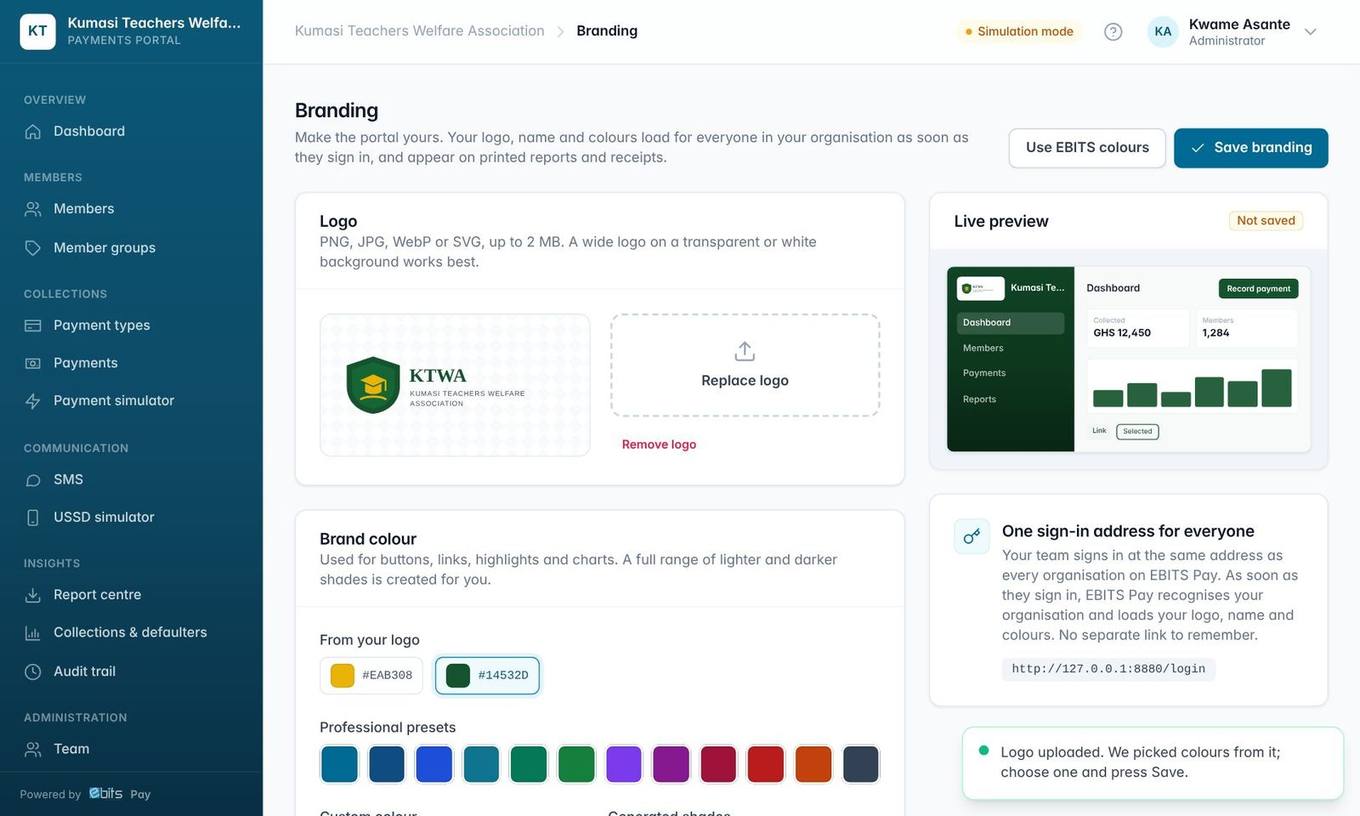
- Open Administration → Branding (you need the Manage settings permission).
- Press Upload logo and choose your logo: PNG, JPG, WebP or SVG, up to 2 MB. A wide logo on a transparent or white background looks best.
- EBITS Pay reads the logo and suggests colours from your logo. Click one, choose a professional preset, or type your own colour code.
- Choose an interface style (below) and check the live preview.
- Press Save branding. Everyone in your organisation sees the new look the next time a page loads.
Good to know If you choose a light colour (for example gold), EBITS Pay automatically uses a deeper shade for buttons so the white text on them stays easy to read. This meets the international WCAG AA accessibility standard.
Interface style
| Style | What it looks like | Good for |
|---|---|---|
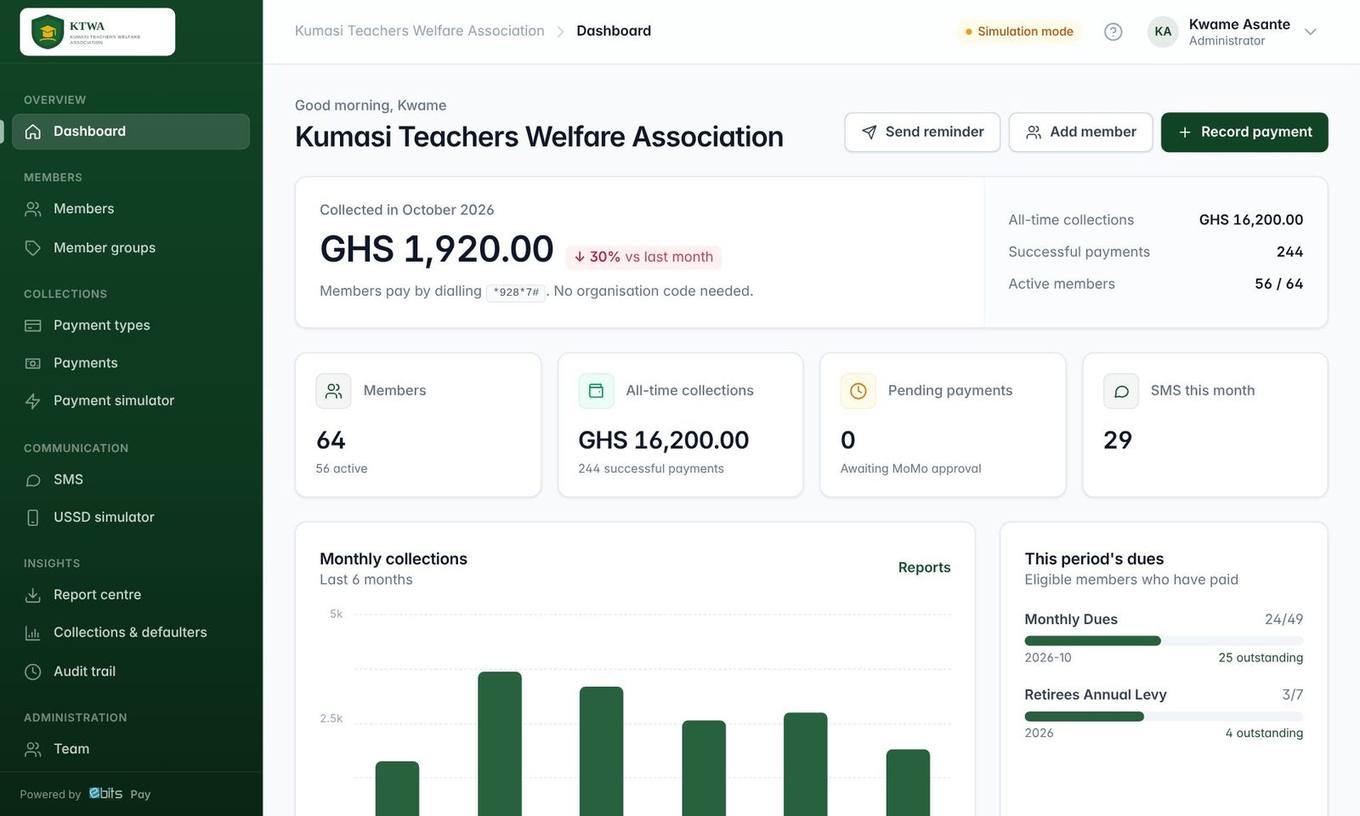
| Coloured (recommended) | The sidebar wears a deep shade of your brand colour; pages have a soft tint of it. Your logo sits on a white badge so it always stays clear. | A rich, confident look that clearly feels like your own system |
| Soft tint | A light wash of your colour on the sidebar and page background | A calm, airy look |
| Light | White sidebar; your colour only on buttons, links and charts | Organisations that prefer a minimal look |
One sign-in address for everyone
Your team does not need a special link. Everyone, from every organisation, signs in at the same EBITS Pay address. As soon as a person signs in, EBITS Pay recognises the organisation they belong to and loads its logo, name, colours and interface style automatically.
| Where your brand appears | What changes |
|---|---|
| Portal (every screen, after sign-in) | Logo and name in the sidebar and browser tab; your colours on the sidebar, buttons, links, charts and highlights |
| Choose-a-new-password screen | Your logo and colours (the person is already recognised) |
| Printed reports and PDFs | Logo in the header and your colours in charts |
| Members' receipts | Logo, name and colours on the online receipt |
Tip Press Use EBITS colours to go back to the standard look, or Remove logo to show your initials instead.